
Game Interface Screenshots
Before downloading any application, many users prefer to see its interface and overall design. The screenshots below provide a preview of the 3S Game interface, allowing you to explore the layout, navigation, and various sections of the application before installation. The latest version of 3S Game features a clean, user-friendly interface that makes it easy to browse games, access your account, manage transactions, and discover new features. Whether you’re a first-time user or updating to the newest version, these screenshots will help you understand what to expect after installing the app.
Before downloading any application, many users prefer to see its interface and overall design. The screenshots below provide a preview of the 3S Game interface, allowing you to explore the layout, navigation, and various sections of the application before installation.
The latest version of 3S Game features a clean, user-friendly interface that makes it easy to browse games, access your account, manage transactions, and discover new features. Whether you’re a first-time user or updating to the newest version, these screenshots will help you understand what to expect after installing the app.
Home Screen
The home screen is the central hub of 3S Game, providing quick access to featured games, promotions, announcements, and the main navigation menu. It is designed to help users find their favorite games with minimal effort.
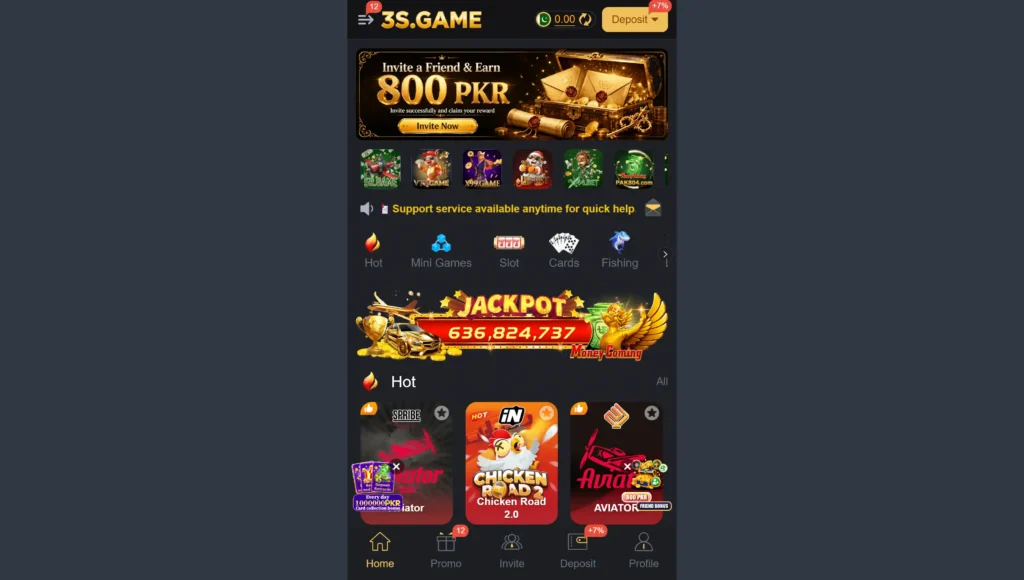
3S Game home screen displaying featured games and quick navigation.
Game Lobby
The game lobby organizes all available mini games into a single interface. Users can browse different categories and quickly launch the games they want to explore.
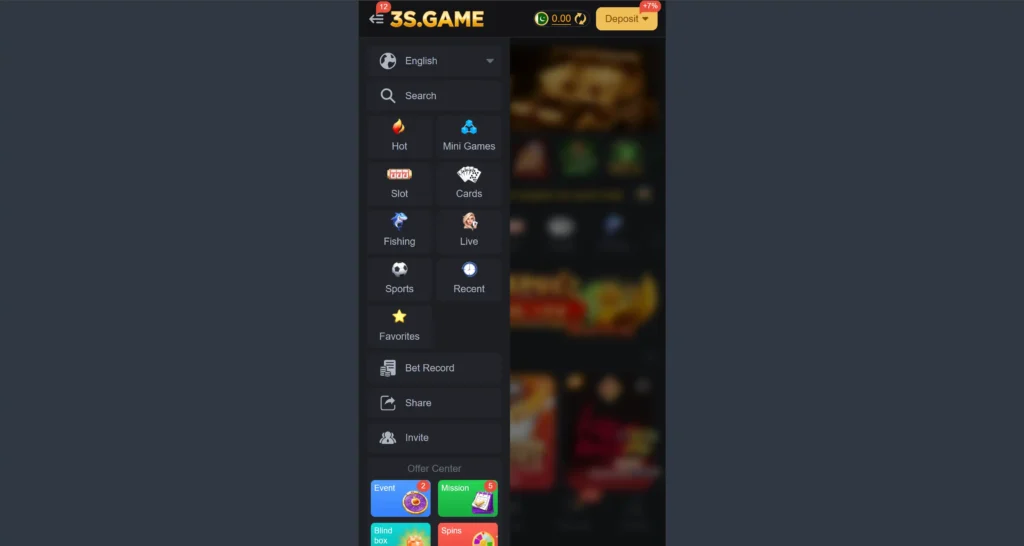
Browse all available mini games from the organized game lobby.
Login & Registration
The login and registration screens are designed to be simple and easy to understand, helping new users create an account while allowing existing users to access their profiles quickly.
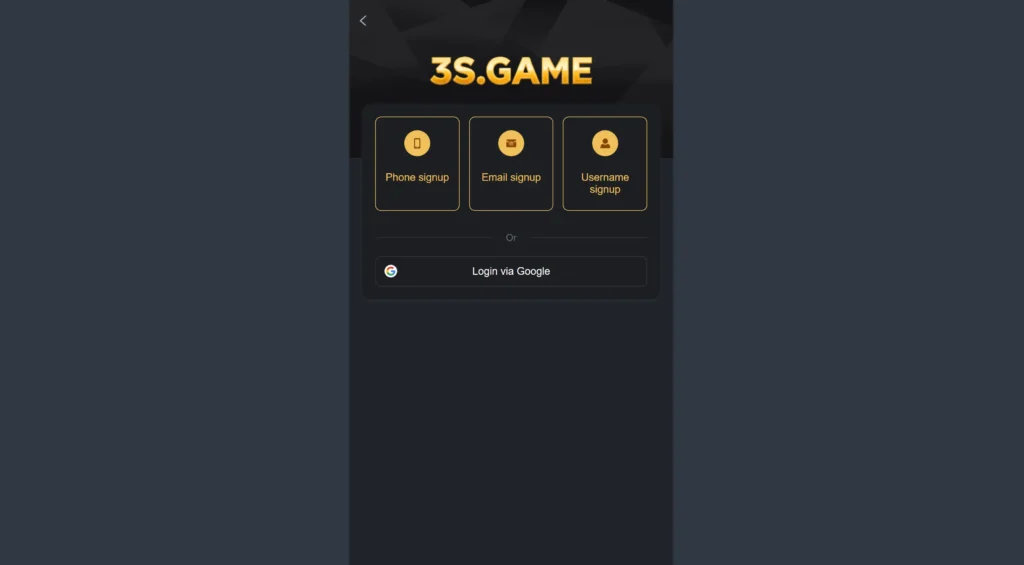
Simple login and registration interface for new and existing users.
Deposit Page
The deposit section allows users to view the available payment methods and complete transactions through supported services such as EasyPaisa and JazzCash.
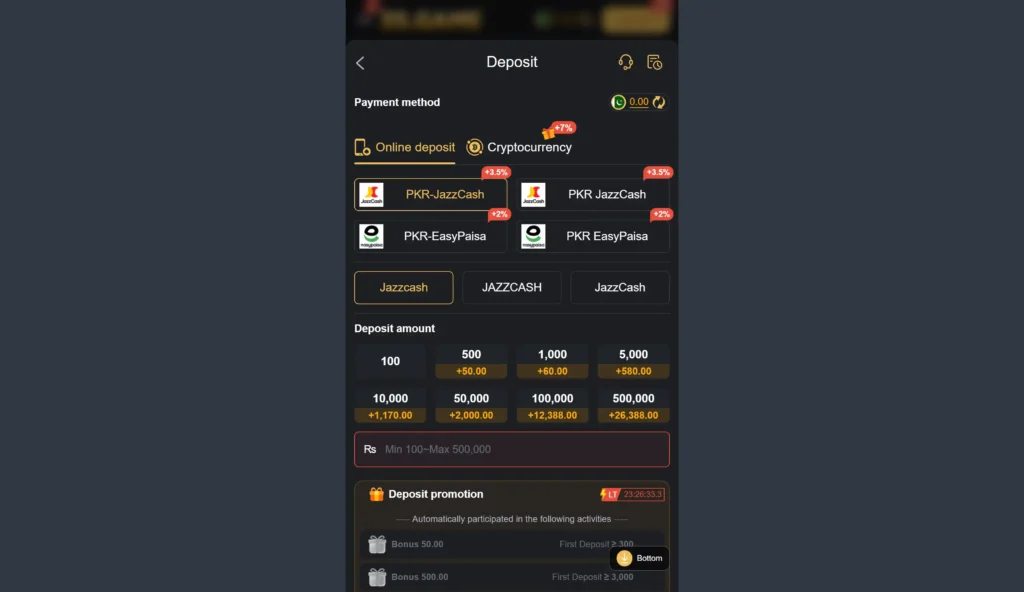
Deposit interface with supported payment options.
Withdrawal Page
The withdrawal page enables users to manage withdrawal requests through a straightforward interface designed for convenience.
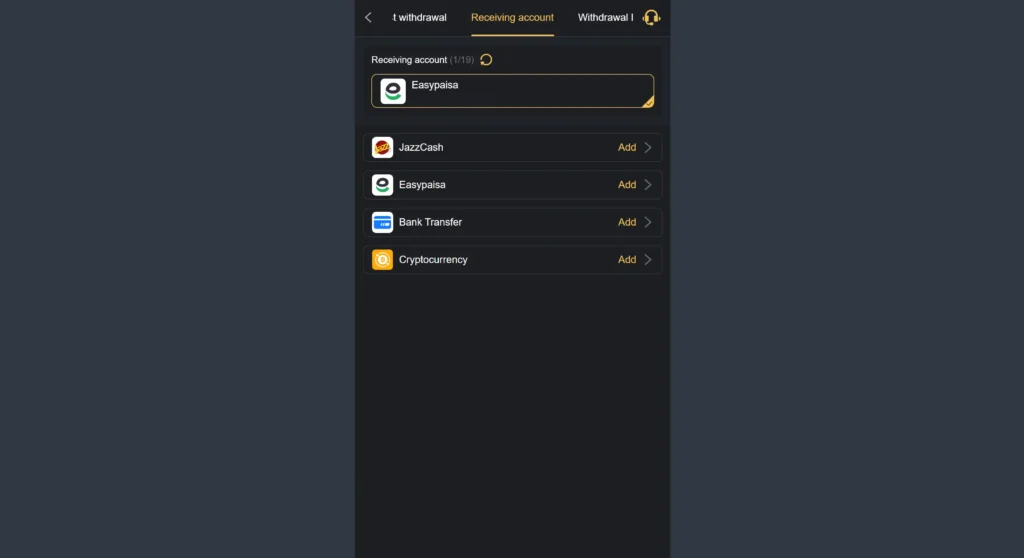
Withdrawal management interface inside 3S Game.
Popular Mini Games
This section displays some of the platform’s most popular games, allowing users to discover new titles directly from the main interface.
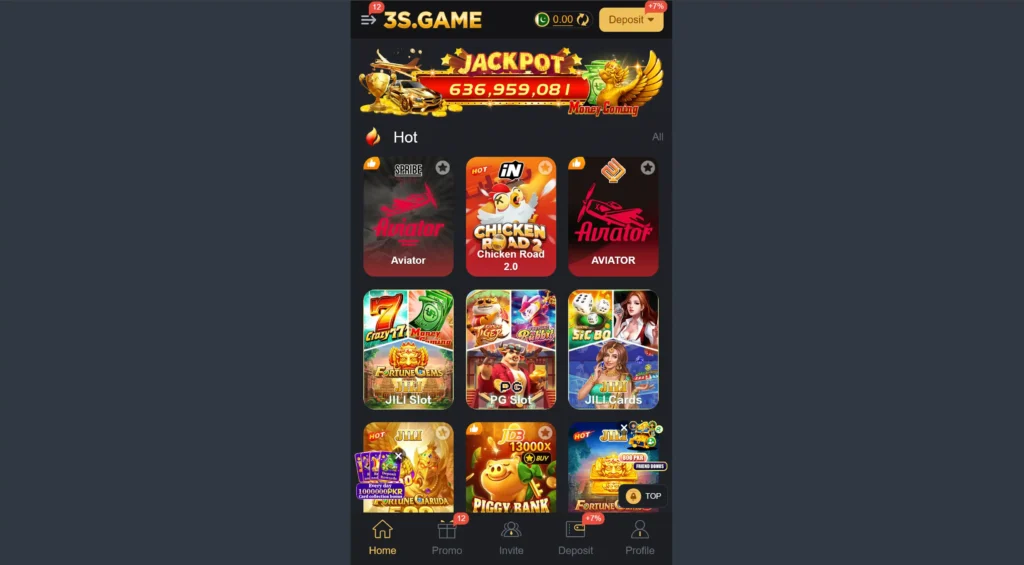
Popular mini games available in the latest version of 3S Game.
User Profile
The profile section allows users to manage their account information, view activity, update settings, and access additional account-related features.
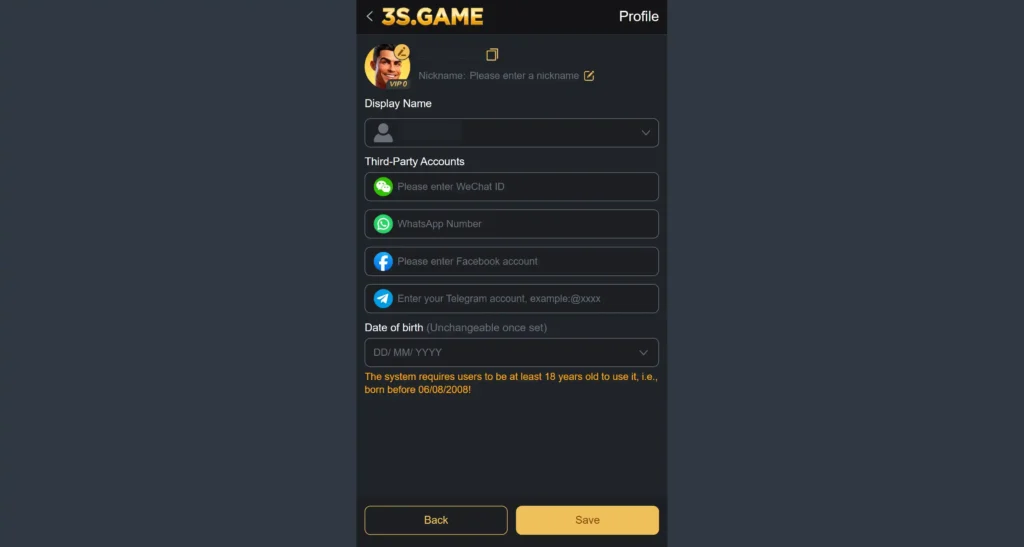
User profile dashboard and account management options.
Promotions & Rewards
The promotions section highlights current offers, rewards, and announcements available within the platform.
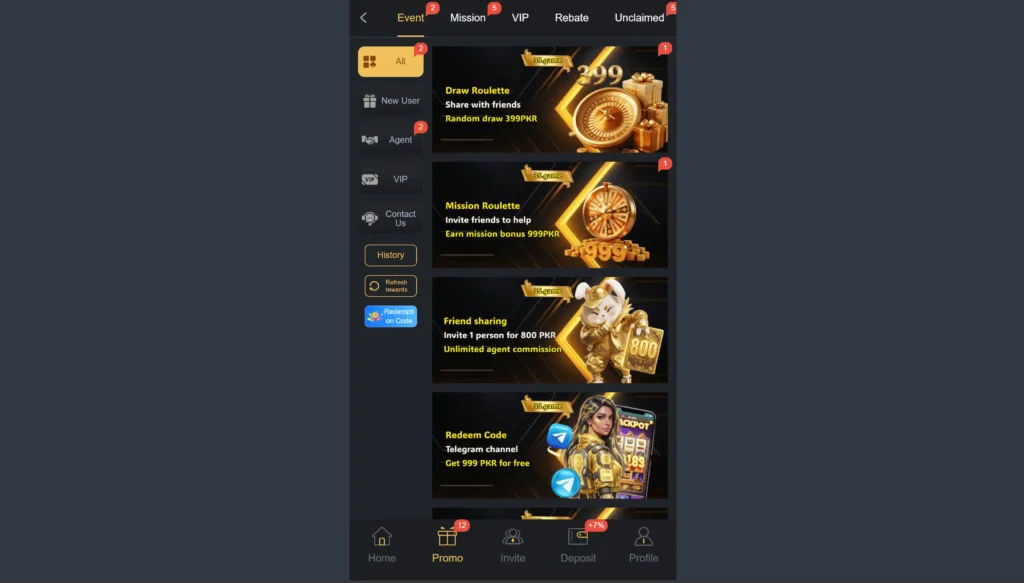
Promotions and rewards page inside the application.
Why Screenshots Matter
Screenshots help users understand the application before downloading it. They provide a visual overview of the interface, navigation, and available features, making it easier for visitors to decide whether the app meets their needs. Regularly updating screenshots after major app updates also ensures that the images accurately reflect the latest version of the application.